计划执行与检查节点
executing-plans
按既定实施计划完成工作,保持过程检查和反馈。
lightning【效率与协作】Send and receive Bitcoin Lightning payments using LNI (Lightning Node Interface). Supports LND, CLN, Phoenixd, NWC, and custodial services (Strike, Blink, Speed).
独立 GitHub 快照 · 自动分类 · 以原作者文档为准
Send and receive Bitcoin over Lightning Network using LNI.
Made in 🤠 Texas ❤️ PlebLab
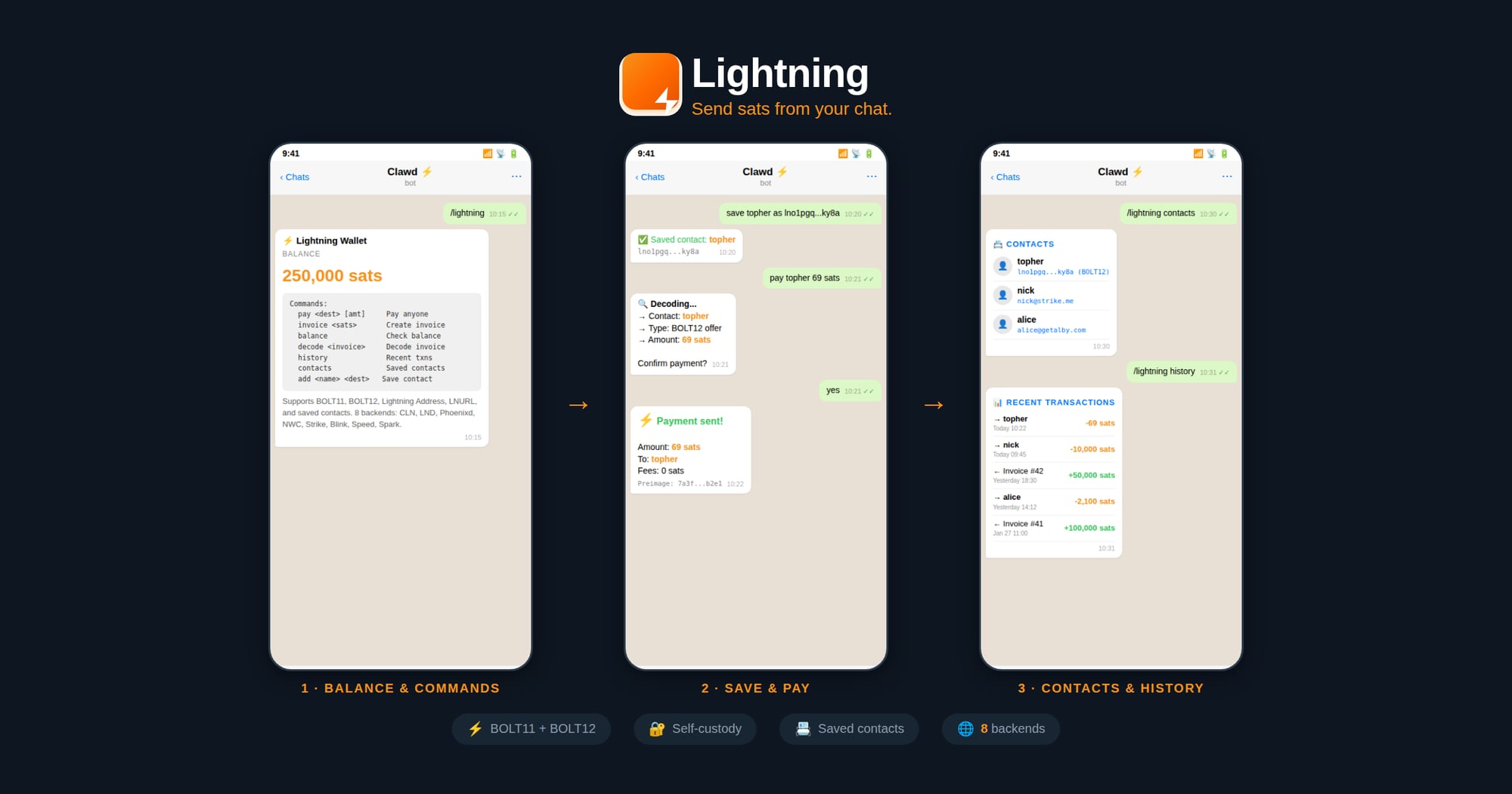
⚠️ RECKLESS MODE - READ THIS FIRST ⚠️
Giving a bot access to your money is dangerous.
- Use a wallet with a small amount you can afford to lose
- NEVER enable this on a bot that outsiders can access via chat
- This skill is intended for personal/internal use only
- The bot can send payments on your behalf — treat credentials like cash
- Start small, test thoroughly, proceed with extreme caution
You have been warned. This is reckless mode.
| Backend | Type | BOLT11 | BOLT12 | LNURL |
|---|---|---|---|---|
| CLN | Self-hosted | ✅ | ✅ | ✅ |
| LND | Self-hosted | ✅ | ⚠️ | ✅ |
| Phoenixd | Self-hosted | ✅ | ✅ | ✅ |
| NWC | Nostr Wallet | ✅ | ❌ | ✅ |
| Spark | Breez SDK | ✅ | ❌ | ✅ |
| Strike | Custodial | ✅ | ❌ | ✅ |
| Blink | Custodial | ✅ | ❌ | ✅ |
| Speed | Custodial | ✅ | ❌ | ✅ |
| Command | Description |
|---|---|
/lightning | Show wallet info & balance |
/lightning invoice <sats> [memo] | Create invoice |
/lightning pay <dest> [amount] | Pay (BOLT11/BOLT12/LNURL/Address) |
/lightning confirm <dest> [amount] | Confirm & send payment |
/lightning decode <invoice> | Decode invoice details |
/lightning history [limit] | List recent transactions |
/lightning contacts | List saved contacts |
/lightning add <name> <dest> | Save a contact |
The pay command auto-detects:
lnbc10u1p5...lno1pg... (CLN/Phoenixd only)user@domain.comlnurl1...tophercd ~/workspace/skills/lightning
npm run download
This downloads the prebuilt native binary for your platform from GitHub Releases.
Create ~/.lightning-config.json:
CLN (Core Lightning):
{
  "backend": "cln",
  "url": "https://your-cln-node:3010",
  "rune": "your-rune-token",
  "acceptInvalidCerts": true
}
LND:
{
  "backend": "lnd",
  "url": "https://your-lnd-node:8080",
  "macaroon": "hex-encoded-admin-macaroon",
  "acceptInvalidCerts": true
}
Phoenixd:
{
  "backend": "phoenixd",
  "url": "http://127.0.0.1:9740",
  "password": "your-phoenixd-password"
}
NWC (Nostr Wallet Connect):
{
  "backend": "nwc",
  "nwcUri": "nostr+walletconnect://..."
}
Spark (Breez SDK):
{
  "backend": "spark",
  "apiKey": "your-breez-api-key",
  "mnemonic": "your 12 word seed",
  "storageDir": "/home/clawd/lightning-data",
  "network": "mainnet"
}
If the user doesn't have a Spark wallet yet, walk them through these steps:
Step 1: Generate a 12-word mnemonic seed
Use the built-in LNI helper:
const lni = require('./lib/lni_js.node');
const mnemonic = lni.generateMnemonic();
console.log(mnemonic);
⚠️ Tell the user to back up their seed phrase securely — it controls their funds.
Step 2: Request a Breez API key
The user must request an API key from Breez for the nodeless (Spark) SDK implementation:
Step 3: Retrieve the API key
After submitting the form, ask the user:
"Do you have an email skill configured (e.g., ProtonMail)? I can check your inbox for the Breez API key if you'd like."
If they approve, use the email skill to search for the Breez API key email and extract it.
Step 4: Create the config
Once you have the mnemonic and API key, write ~/.lightning-config.json:
{
  "backend": "spark",
  "apiKey": "<breez-api-key>",
  "mnemonic": "<12-word-seed>",
  "storageDir": "/home/clawd/lightning-data",
  "network": "mainnet"
}
Step 5: Connect and verify
const node = new lni.SparkNode(config);
await node.connect();
const info = await node.getInfo();
Strike/Blink/Speed (Custodial):
{
  "backend": "strike",
  "apiKey": "your-api-key"
}
Connect to your node over Tor for enhanced privacy, or to reach nodes on .onion addresses.
Requirements:
.onion address or clearnet through Tor)Install Tor:
# macOS
brew install tor && brew services start tor

# Ubuntu/Debian
sudo apt install tor && sudo systemctl start tor

# Arch
sudo pacman -S tor && sudo systemctl start tor
Configure with SOCKS5 proxy:
Add socks5Proxy to any backend config:
{
  "backend": "cln",
  "url": "http://your-node.onion:3010",
  "rune": "your-rune-token",
  "socks5Proxy": "socks5h://127.0.0.1:9050"
}
Common proxy addresses:
| Service | Address |
|---|---|
| Tor daemon | socks5h://127.0.0.1:9050 |
| Tor Browser | socks5h://127.0.0.1:9150 |
💡 Use
socks5h://(notsocks5://) so.onionaddresses are resolved through Tor, not locally.
# Check balance
/lightning

# Create invoice
/lightning invoice 1000 "Coffee payment"

# Pay Lightning Address
/lightning pay nicktee@strike.me 100

# Pay BOLT12 offer
/lightning pay lno1pg... 50

# Save & pay contact
/lightning add topher lno1pg...
/lightning pay topher 69
~/.lightning-config.json - Backend credentials~/.lightning-contacts.json - Saved contactsacceptInvalidCerts only for self-signed certs on trusted networksBuilt on LNI (Lightning Node Interface).